How to Back Up Android Before a Reset or Phone Change

Goal: build a recoverable Android backup before a factory reset, repair, or phone replacement. Android backup is not one single copy: system settings, photos, messages, app data, files, authenticator accounts, and messaging histories can use different mechanisms. The safe approach is to inventory each data type and verify that it can actually be restored.
Quick steps
- Open Settings > Google > Backup, or the equivalent on your device, and check the last successful backup.
- Open Google Photos or your chosen photo service and verify upload status.
- Copy important Downloads/Documents to a computer, external storage, or cloud folder.
- Export or transfer authenticator accounts and save recovery codes.
- Check messaging apps individually; use their own backup/transfer feature where required.
- Record eSIM/carrier and work-profile recovery information.
- Test the backup by opening files from the destination.
Expected result: you can reset or replace the phone knowing where each important data category will come from during restoration.
What you need before you start
- Wi-Fi and enough time for pending uploads.
- Your Google account password and a second authentication method.
- A computer, external drive, or cloud destination for local files not covered by Android backup.
- App-specific passwords or recovery codes where necessary.
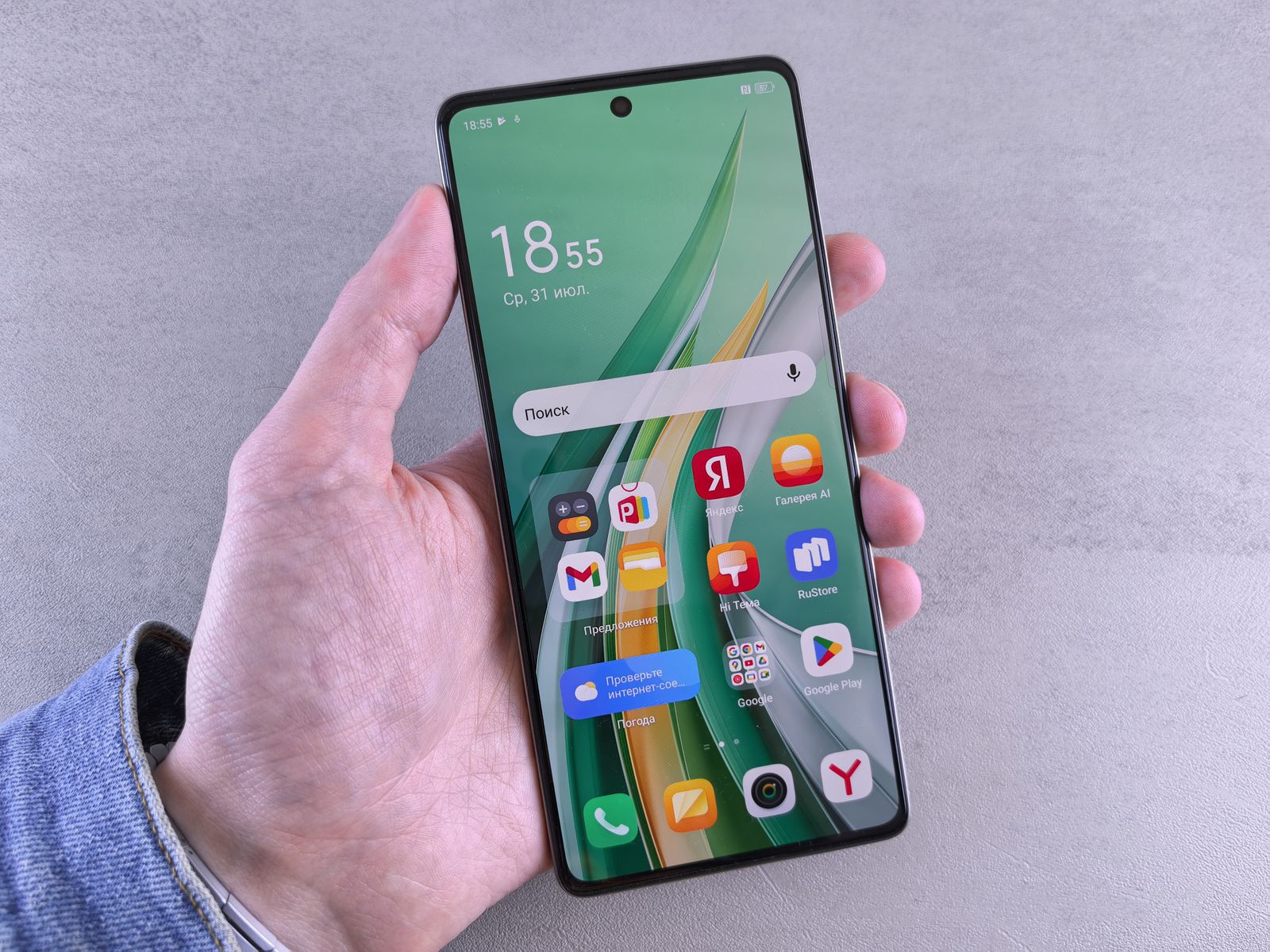
Understand Android’s backup layers
Google’s device backup can preserve supported settings and app data, but app developers control what their apps include. Google Photos is separate from the device-backup status. Files manually downloaded to storage may also be separate. That is why “Backup is on” is not sufficient evidence that everything is protected.
Photos and videos
Open your photo backup service and verify that synchronization has completed. Check recent photos and large videos specifically; they are often the last items still pending. If memories are irreplaceable, keep a second independent copy on a computer or external drive before a destructive reset.
Files, Downloads, and offline content
Review Downloads, Documents, voice recordings, PDFs, exported scans, and files created by editing apps. Some content is visible in a file manager but not included in cloud backup. Copy it explicitly and open random files from the destination to confirm the copy is usable.
Messaging apps and authenticators
Do not assume every messaging app is covered by Android’s system backup. WhatsApp, Signal, and other services have their own transfer and backup rules. Follow the current official instructions for the app you use.
Authenticator apps deserve special attention because losing them can block access to the very cloud account that holds your backup. Use the app’s supported transfer/sync feature where available and store recovery codes somewhere independent of the phone.
Contacts and calendar
Check which account owns the contacts. Contacts saved only to the device or SIM may not follow your Google account. Move or export them if needed. Verify calendar events are attached to an online account rather than a local-only calendar.
Passwords, browser data, and passkeys
If you rely on a password manager, verify sync and account recovery before resetting. Browser passwords/bookmarks should be confirmed in the account’s sync settings. Passkeys may sync through your platform account or password manager, but recovery depends on the ecosystem and account security; do not delete the only device before confirming another sign-in path.
Work profiles, banking apps, and eSIM
Enterprise profiles usually require re-enrollment after a reset. Banking apps may require identity verification. eSIMs may need carrier reactivation. Record the support channels, account numbers, and recovery process in advance so the new or reset device is not your only source of that information.
Perform a restore test before erasing
- Open recent photos from the cloud web interface or another device.
- Open documents from the backup destination.
- Confirm contacts appear in the online account.
- Confirm you can sign in to the Google account from another trusted device.
- Verify recovery codes or a second 2FA device.
How to verify backup readiness
Create a simple list with one line per category: Photos, Files, Contacts, Messages, Authenticator, Passwords, Work, eSIM. For each line, write the destination and the date you last verified it. This turns a vague “I think it is backed up” into a recoverable plan.
Common problems and fixes
- Google backup is old: connect to power and Wi-Fi, start a backup manually if the option is available, and wait for completion.
- Photos still say “backing up”: leave the app/network active until it finishes; do not reset first.
- Storage is too full to create an export: move large noncritical media to external storage before making the final backup.
- 2FA depends on the phone: create another recovery method before the reset.
Safety and precautions
- Do not keep the only backup on a microSD card that will remain inside a phone being repaired or sold.
- Encrypt external copies containing sensitive information.
- Do not erase the old phone until the new phone has restored the critical data successfully.
Frequently asked questions
Does Google backup include every app?
No. Application support varies, and some apps deliberately exclude sensitive data.
Should I copy the DCIM folder manually?
If your photos are important, an additional verified copy is a good idea even when cloud backup is enabled.
Can I restore everything to a different Android brand?
Many categories transfer, but manufacturer features and some app data may not. Treat cross-brand migration as a restoration project, not a guaranteed clone.
Backup verification before Android reset
Android backup is distributed across multiple systems: Google device backup, Google Photos, app-specific cloud backups, messaging exports, local Downloads/DCIM files, password manager, authenticator transfer, and eSIM/carrier configuration. Open each important service and confirm its last backup/sync state rather than relying on one “Backup” screen.
Critical pre-reset checklist
- Photos/videos visible from another device or web account.
- Contacts and calendars synchronized to the intended account.
- WhatsApp/other messenger backup completed and recovery number/account available.
- Authenticator/MFA recovery codes stored safely.
- eSIM transfer/reissue process understood.
- Local Downloads/Documents copied elsewhere.
- Google account password and device unlock known.
After reset, restore the minimum critical services first and verify them before wiping any secondary copy or old phone.
Do not forget local-only application data
Open apps that create recordings, scans, notes, downloads, drawing projects, or offline maps and check whether their files are actually in cloud backup. Export local projects where the app provides an export function. A generic Android device backup may restore the app but not every document created inside it.
Charge and connectivity during backup
Run a final backup while the phone is charging on stable Wi-Fi, leave enough time for large photo/video queues, and re-open the backup screen afterward to confirm completion time. A backup started five minutes before reset may still be uploading.
Final checklist
- Google/device backup current.
- Photo upload complete.
- Local files copied.
- Messages handled per app.
- Authenticator/recovery codes safe.
- Passwords and passkeys recoverable.
- eSIM/work-profile plan recorded.
- Random restore test passed.
Key takeaways
The method: back up each data category using the mechanism that actually owns it, then verify the destination before erasing anything.
The key principle: backup status is useful; a successful restore test is proof.
Official sources and references
- Google Support — Official documentation
- Google Support — Official documentation
- Google Support — Official documentation
- Google Support — Official documentation
Image credits
- Photo 1 — Pexels · Pexels License.
- Photo 2 — Pexels · Pexels License.
- Photo 3 — Pexels · Pexels License.

Commentaires