How to Speed Up a Slow Windows PC: Diagnose Before You Optimize

Goal: a “slow PC” can be caused by CPU saturation, insufficient RAM, a full or failing disk, background updates, startup software, thermal throttling, browser workload, malware, or simply hardware that is too limited for the task. This guide measures first and changes one thing at a time so you do not install risky “optimizer” software or disable Windows protections for a temporary benchmark gain.
Quick steps
- Restart the PC and reproduce the slowdown with only the necessary applications open.
- Open Task Manager and watch CPU, Memory, Disk, and GPU during the slow moment.
- Check free space on the system drive.
- Review startup apps and disable only items you recognize and do not need at sign-in.
- Install Windows and manufacturer updates.
- Check temperatures, fan behavior, and storage health if performance degrades under load.
Expected result: you identify the bottleneck category and apply a targeted, reversible change rather than a generic “speed boost.”
What you need before you start
- A few minutes when the slowdown can be reproduced.
- Task Manager and Windows Settings.
- A backup if the PC shows disk errors, crashes, or other signs of hardware failure.
- The exact workload that feels slow: boot, browser, game, file copy, video editing, or general responsiveness.
Measure the right resource
Task Manager is the first useful tool because it separates CPU, memory, disk, network, and GPU pressure. A system at 95% memory behaves differently from one whose CPU is pegged by a rendering job. Likewise, 100% disk activity on a hard drive is not the same problem as a GPU-limited game.
Find heavy processes with PowerShell
Run the following in PowerShell without administrator rights. It lists processes with high working-set memory along with CPU time. It is read-only and has no values to replace.
Get-Process |
  Sort-Object WorkingSet64 -Descending |
  Select-Object -First 15 ProcessName, Id, @{Name="Memoire_Mo";Expression={[math]::Round($_.WorkingSet64/1MB,0)}}, CPU
The output is a snapshot, so compare it with Task Manager while the slowdown is happening. High memory use is not automatically a bug: a browser, IDE, virtual machine, game, or editor may legitimately use a lot of RAM. The question is whether the system is under pressure and paging heavily.
Startup apps: reduce load without breaking services
Use Settings > Apps > Startup or Task Manager’s Startup apps page. Disable only programs you recognize and can open manually later. Do not disable security agents, touchpad utilities, storage-controller software, or unknown enterprise tools simply because they have a startup impact rating.
Disk space and storage health
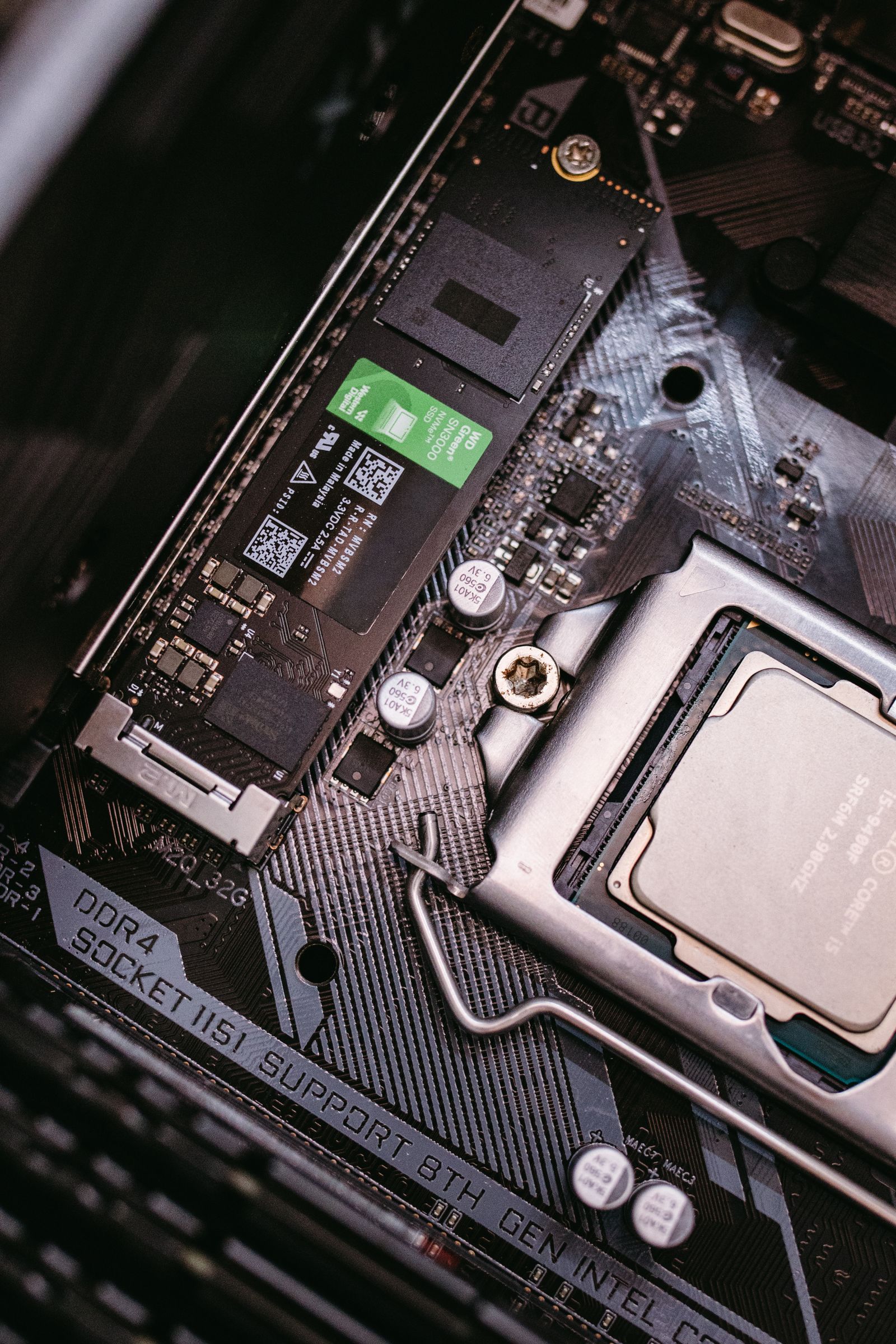
A nearly full system drive can slow updates and temporary operations. Free space using Windows Storage settings. If the PC freezes during file access, reports I/O errors, or the drive disappears intermittently, stop “optimization” and investigate storage health first. Performance tuning does not repair failing hardware.
Updates and drivers
Windows Update can temporarily use CPU, disk, and network in the background. Let pending updates finish and restart before judging performance. For graphics, chipset, Wi-Fi, and storage problems, prefer Windows Update or the hardware manufacturer’s official driver packages. Avoid driver-updater utilities that install unverified versions across the system.
Thermal throttling
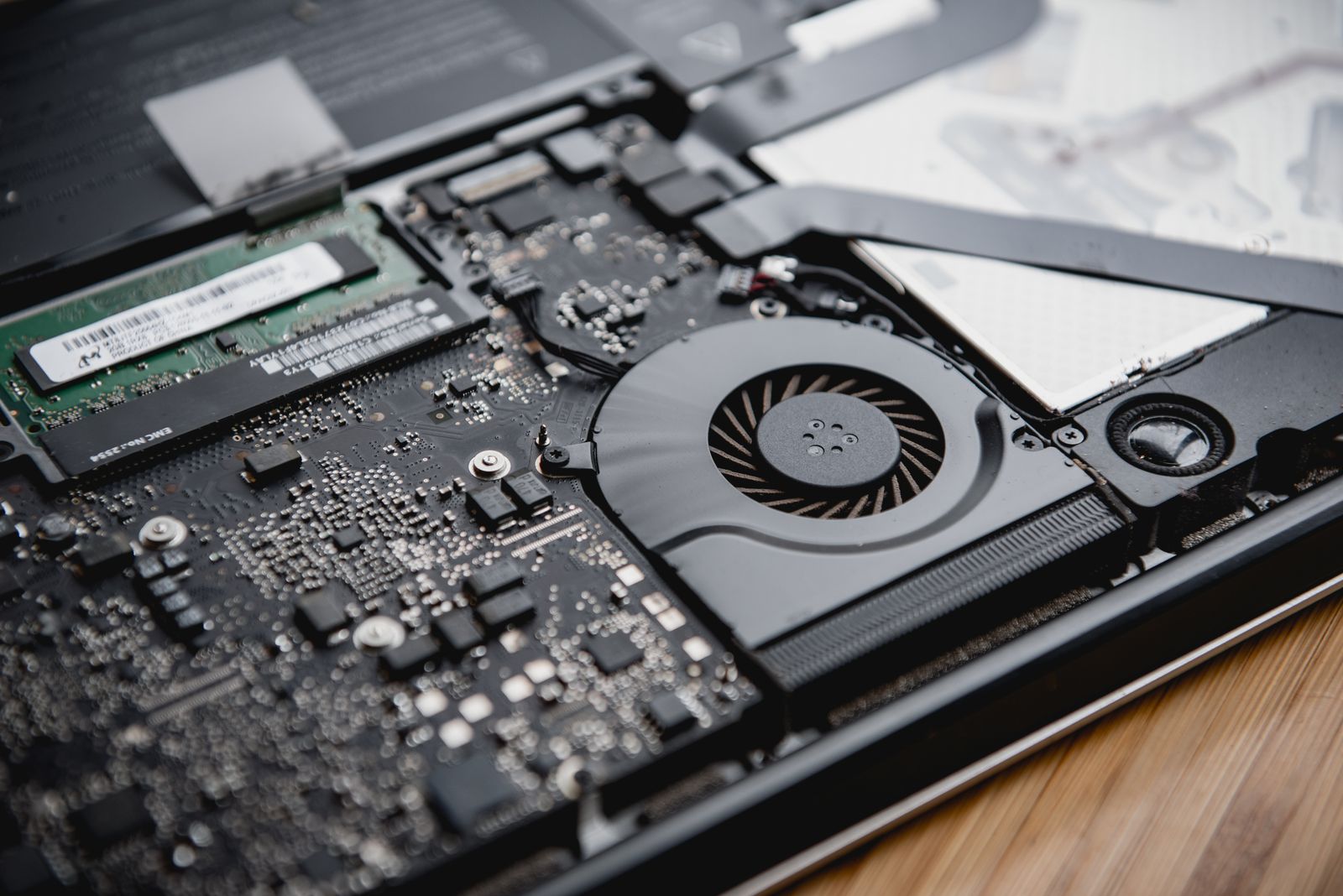
Laptops and compact PCs may reduce CPU/GPU frequency when cooling is insufficient. A machine that starts fast and becomes slow after several minutes of heavy load is different from one that is slow immediately after boot. Check airflow, dust buildup, fan behavior, and manufacturer thermal diagnostics before changing Windows registry settings.
Memory pressure
If memory remains near capacity and the system constantly pages to disk, closing unused applications can help immediately. For a permanent solution, reduce workload or add RAM if the device supports it. Disabling the page file is usually not a performance fix and can cause application failures; let Windows manage virtual memory unless you have a documented specialist requirement.
What not to do
- Do not install “RAM cleaners” that merely force cached memory out.
- Do not disable Windows Defender, updates, or security services for normal performance tuning.
- Do not apply large registry tweak packs when you cannot explain each change.
- Do not delete system files to make benchmarks look better.
How to verify a change
Measure before and after under the same workload. Record boot time, application launch time, frame rate, render time, or another meaningful metric. A change that lowers one Task Manager percentage but does not improve the real task is not necessarily useful.
Common problems and fixes
- CPU is high: identify the process and determine whether it is legitimate workload, update activity, runaway software, or malware.
- Memory is full: close unnecessary apps, reduce browser tabs/VMs, and consider a RAM upgrade if supported.
- Disk is at 100%: determine whether it is updates, indexing, paging, application I/O, or hardware trouble.
- Only games are slow: inspect GPU load, thermals, power mode, drivers, and resolution before changing Windows services.
- PC is slow only after boot: review startup apps and background update activity.
Safety and precautions
- Back up data if crashes or disk errors accompany the slowdown.
- Change one setting at a time and document it.
- Prefer built-in Windows controls and official drivers.
- Restore disabled startup apps if the change does not help.
Frequently asked questions
Does more RAM always make a PC faster?
Only when memory pressure is a real bottleneck. Extra RAM does not fix a CPU-limited workload or failing SSD.
Should I disable visual effects?
On very limited hardware it can slightly reduce graphical overhead, but it is not a substitute for diagnosing the actual bottleneck.
Is 100% disk always a failing drive?
No. Heavy legitimate I/O, paging, updates, and indexing can also reach 100%. Repeated errors, stalls, or disappearance of the drive are stronger warning signs.
Measure performance before applying tweaks
A slow PC can be CPU-bound, memory-starved, thermal-throttled, storage-constrained, blocked by updates, or waiting on a failing disk/network service. Open Task Manager during the slow operation and record CPU, memory, disk active time, GPU, startup impact, and the process actually consuming resources. Compare idle versus problem-state behavior.
Avoid registry “optimizer” packs, service-disabling scripts, and cleaners that promise universal speed. They can remove diagnostics, security features, or required services while masking the real bottleneck. Prefer one reversible change at a time: free disk space, remove an unnecessary startup app, update a problematic driver from the official source, or replace failing hardware.
Hardware reality check
If memory remains near capacity and the system swaps heavily during normal work, more RAM can help when upgradeable. If a mechanical/failing drive is the bottleneck, an SSD or drive replacement may matter more than software tuning. Back up before hardware/storage work.
Final checklist
- Slow workload defined.
- CPU/RAM/disk/GPU observed during the slowdown.
- Free space checked.
- Startup apps reviewed.
- Updates completed.
- Thermals and hardware considered.
- One change measured at a time.
Key takeaways
The method: reproduce, measure, identify the constrained resource, then apply the smallest reversible change that addresses it.
The key principle: optimization without diagnosis often trades stability or security for an improvement you cannot even measure.
Official sources and references
- Microsoft Support — Official documentation
- Microsoft Support — Official documentation
- Microsoft Support — Official documentation
- Microsoft Support — Official documentation
- Microsoft Support — Official documentation
Image credits
- Photo 1 — Pexels · Pexels License.
- Photo 2 — Pexels · Pexels License.
- Photo 3 — Pexels · Pexels License.

Commentaires